> For the complete documentation index, see [llms.txt](https://help.topstepx.com/llms.txt). Markdown versions of documentation pages are available by appending `.md` to page URLs; this page is available as [Markdown](https://help.topstepx.com/settings/risk-settings/trade-clock.md).
# Trade Clock
The Trade Clock feature helps traders maintain discipline by preventing from adding new orders to their existing trades for a set period, while still allowing to manage and exit the open trade.
## **How the Trade Clock Works**
When enabled, the **Trade Clock** prevents traders from entering new orders related to their existing trade. However, traders will still have the ability to manage their open positions by adjusting or closing them. This feature is ideal for those who want to follow a structured trading plan and avoid impulsive decisions.
#### **Key Features:**
* **Prevents new order entries:** Traders cannot add new positions or orders
* **Manage open positions:** Traders can still modify and exit existing trades
* **Configurable time intervals:** Select from predefined or custom time durations
### **How to Enable the Trade Clock**
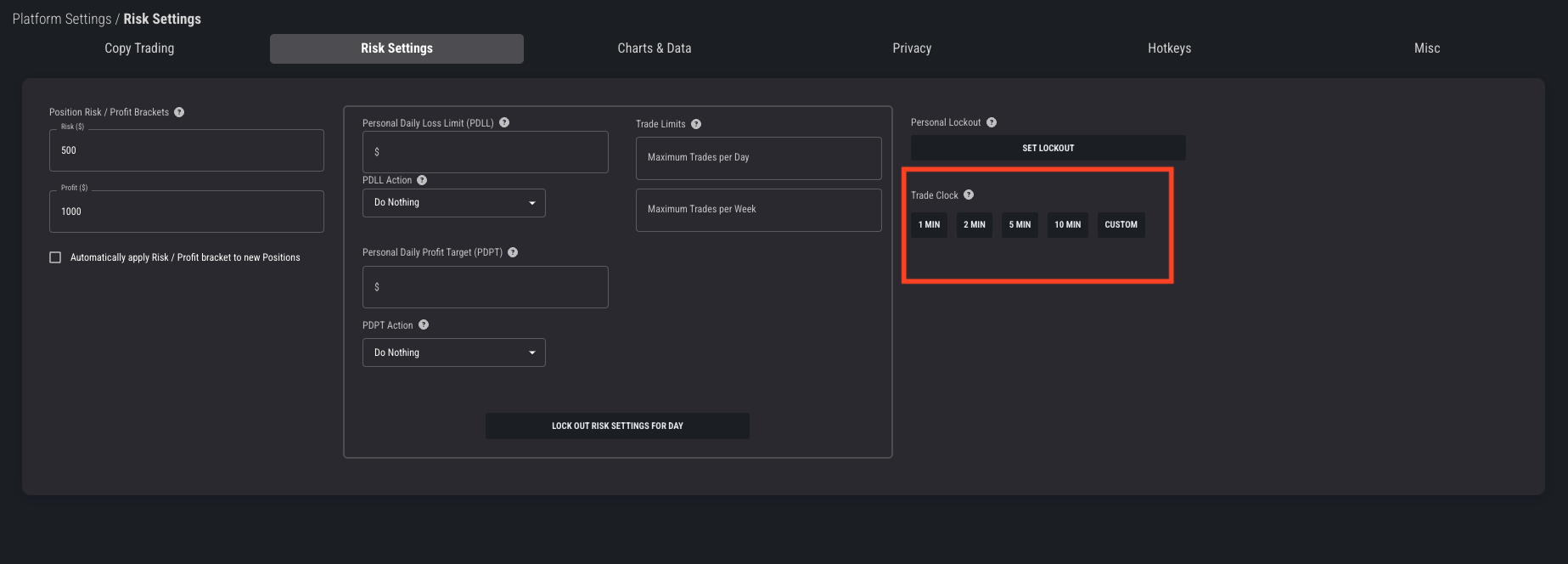
The Trade Clock can **only** be enabled when there is at least one **open position and/or working order** in the market. Follow these steps to activate it:
1. **Navigate to Risk Settings:**
* Open the platform settings.
* Go to the **"Risk Settings"** tab.
2. **Set a Trade Clock Timer:**
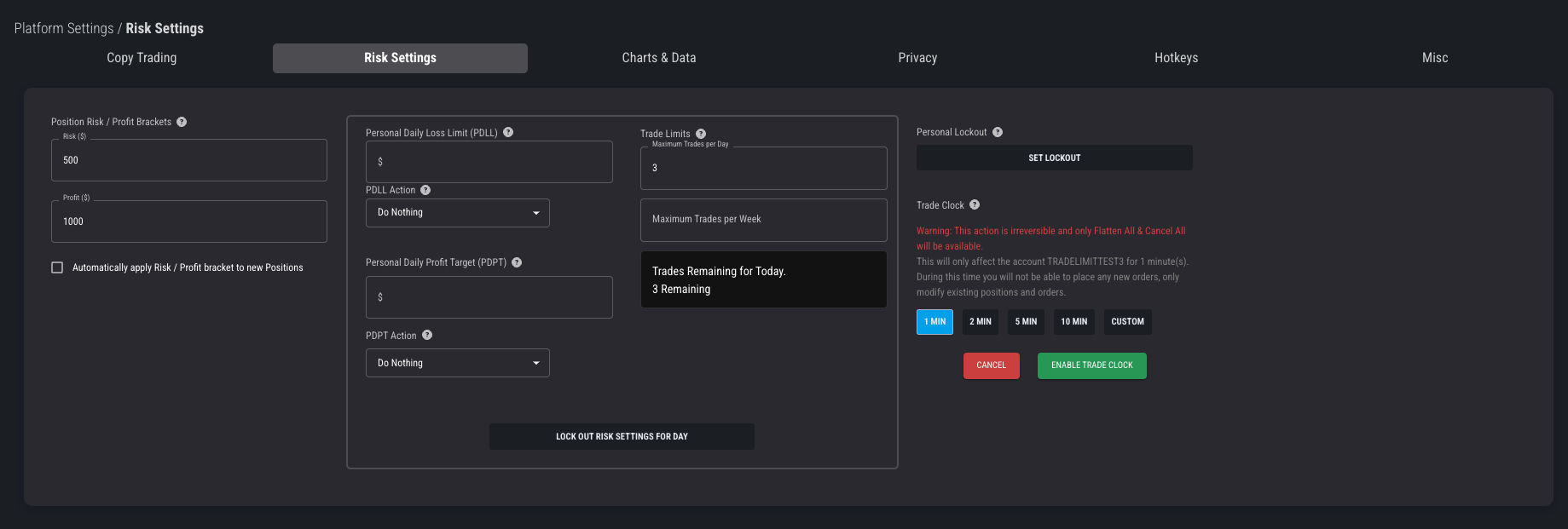
* Select from available time options (e.g., **1 min, 2 min, 5 min, 10 min, or custom.**)
3. **Enable Trade Clock:**
* Click on **“Enable Trade Clock.”**
* A confirmation modal will appear, summarizing the lock period and restrictions.
4. **Confirm Activation:**
* Click **“Enable Trade Clock”** to proceed.
Trade Clock
Confirmation
### Managing Trades While the Trade Clock is Active
Once the Trade Clock is enabled:
* Traders **cannot** add new positions or orders until the timer ends
* Traders **can:**
* Add or modify stop-loss and take-profit orders
* Flatten or exit their current positions
* Cancel existing working orders
#### **Important Notes**
* The Trade Clock is **irreversible** once enabled, meaning it will remain active for the selected duration or until the active position and/or orders are closed/cancelled.
* A warning message will be displayed before activation, ensuring traders are aware of the restrictions.
* If there are no active trades or working orders, the Trade Clock cannot be enabled.
---
# Agent Instructions
This documentation is published with GitBook. GitBook is the documentation platform designed so that both humans and AI agents can read, navigate, and reason over technical content effectively. Learn more at gitbook.com.
## Querying This Documentation
If you need additional information that is not directly available in this page, you can query the documentation by asking a question.
Perform an HTTP GET request on the following URL with the `ask` and `goal` query parameters:
```
GET https://help.topstepx.com/settings/risk-settings/trade-clock.md?ask=&goal=
```
`ask` is the immediate question: it should be specific, self-contained, and written in natural language.
`goal` is what the user is ultimately trying to achieve, the reason they need the answer. Sharing it helps GitBook give you a better, more relevant answer. A goal is most helpful when it describes the outcome the user wants rather than restating the question. For example, with `ask=how do I create an API token`, a goal like `automate deployments from our CI pipeline` lets GitBook tailor the answer to that use case.
The response will contain a direct answer to the question and relevant excerpts and sources from the documentation.
Use this mechanism when the answer is not explicitly present in the current page, you need clarification or additional context, or you want to retrieve related documentation sections.