> For the complete documentation index, see [llms.txt](https://help.topstepx.com/llms.txt). Markdown versions of documentation pages are available by appending `.md` to page URLs; this page is available as [Markdown](https://help.topstepx.com/settings/risk-settings/lock-out-customizations.md).
# Lock-Out Customizations
## Lock-Out
The **Lock-Out** feature is designed to help traders take control of their trading activity by locking themselves out of trading for a specified duration or trading session. This feature allows you to step away from the markets, maintain discipline, and manage risk effectively.
Risk Settings
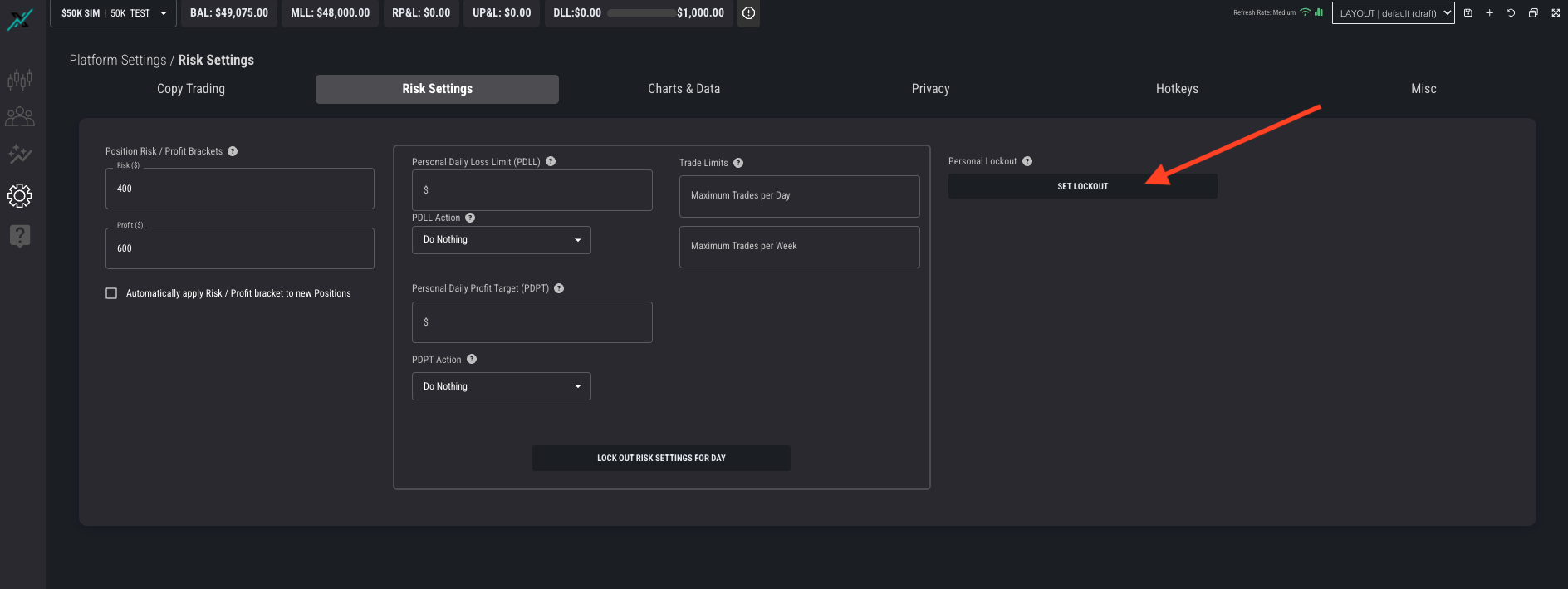
Go to the "Risk Settings" tab under "Platform Settings" and locate the **Set Lockout** button (refer to the screenshot above for guidance).
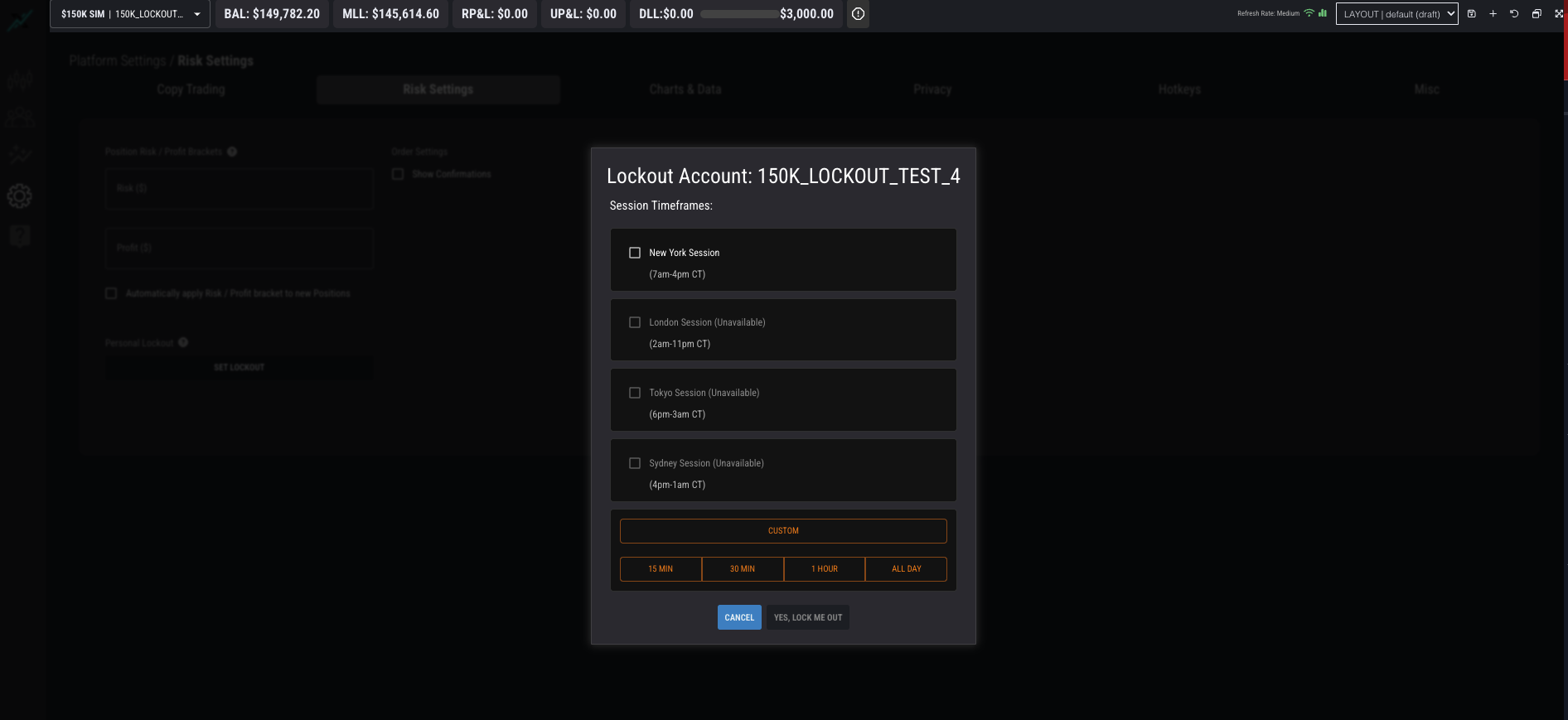
**Select Your Lock-Out Duration**:
* New York Session (7:00 AM - 4:00 PM CT)
* London Session (2:00 AM - 11:00 AM CT)
* Tokyo Session (6:00 PM - 3:00 AM CT)
* Sydney Session (4:00 PM - 1:00 AM CT)
Choose from one of the following pre-defined options:
* **15 minutes**
* **30 minutes**
* **1 hour**
* **All day**
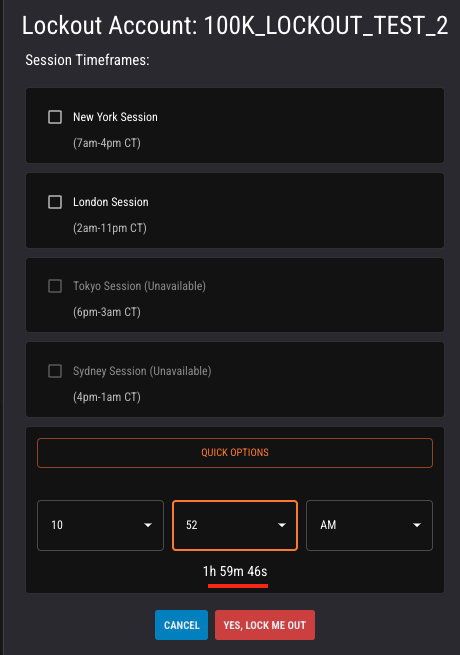
Alternatively, create a **Custom lock-out time** by selecting the end time that suits your needs.
Lock Out
Custom Lock Out End Time
### During the Lock-Out
While the Lock-Out is active:
* **Positions and Orders**:
* All open positions are liquidated, and pending orders are canceled immediately upon activation.
* No new trades or modifications can be made.
* **Countdown Timer**:
* A timer at the top of the platform provides a real-time countdown of the remaining lock-out period.
Lock Out Timer
### Ending the Lock-Out
* The lock-out will automatically end when the selected duration or trading session expires.
* Once the lock-out ends, full trading functionality will be restored.
{% hint style="danger" %}
#### **Note**: Lock-Outs cannot be canceled or reversed once they are activated, so make sure to select your timeframe carefully.
{% endhint %}
---
# Agent Instructions
This documentation is published with GitBook. GitBook is the documentation platform designed so that both humans and AI agents can read, navigate, and reason over technical content effectively. Learn more at gitbook.com.
## Querying This Documentation
If you need additional information that is not directly available in this page, you can query the documentation by asking a question.
Perform an HTTP GET request on the following URL with the `ask` and `goal` query parameters:
```
GET https://help.topstepx.com/settings/risk-settings/lock-out-customizations.md?ask=&goal=
```
`ask` is the immediate question: it should be specific, self-contained, and written in natural language.
`goal` is what the user is ultimately trying to achieve, the reason they need the answer. Sharing it helps GitBook give you a better, more relevant answer. A goal is most helpful when it describes the outcome the user wants rather than restating the question. For example, with `ask=how do I create an API token`, a goal like `automate deployments from our CI pipeline` lets GitBook tailor the answer to that use case.
The response will contain a direct answer to the question and relevant excerpts and sources from the documentation.
Use this mechanism when the answer is not explicitly present in the current page, you need clarification or additional context, or you want to retrieve related documentation sections.