> For the complete documentation index, see [llms.txt](https://help.topstepx.com/llms.txt). Markdown versions of documentation pages are available by appending `.md` to page URLs; this page is available as [Markdown](https://help.topstepx.com/components/order-card/trading.md).
# Trading
## Contract
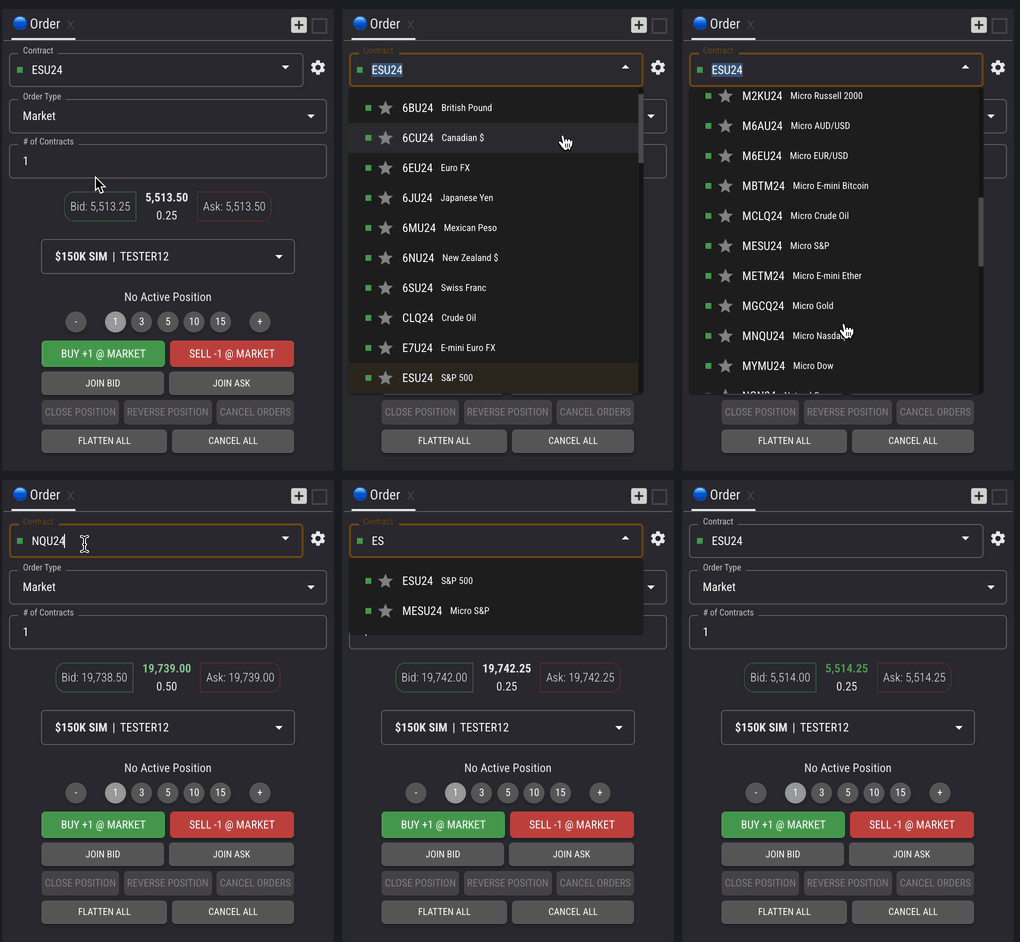
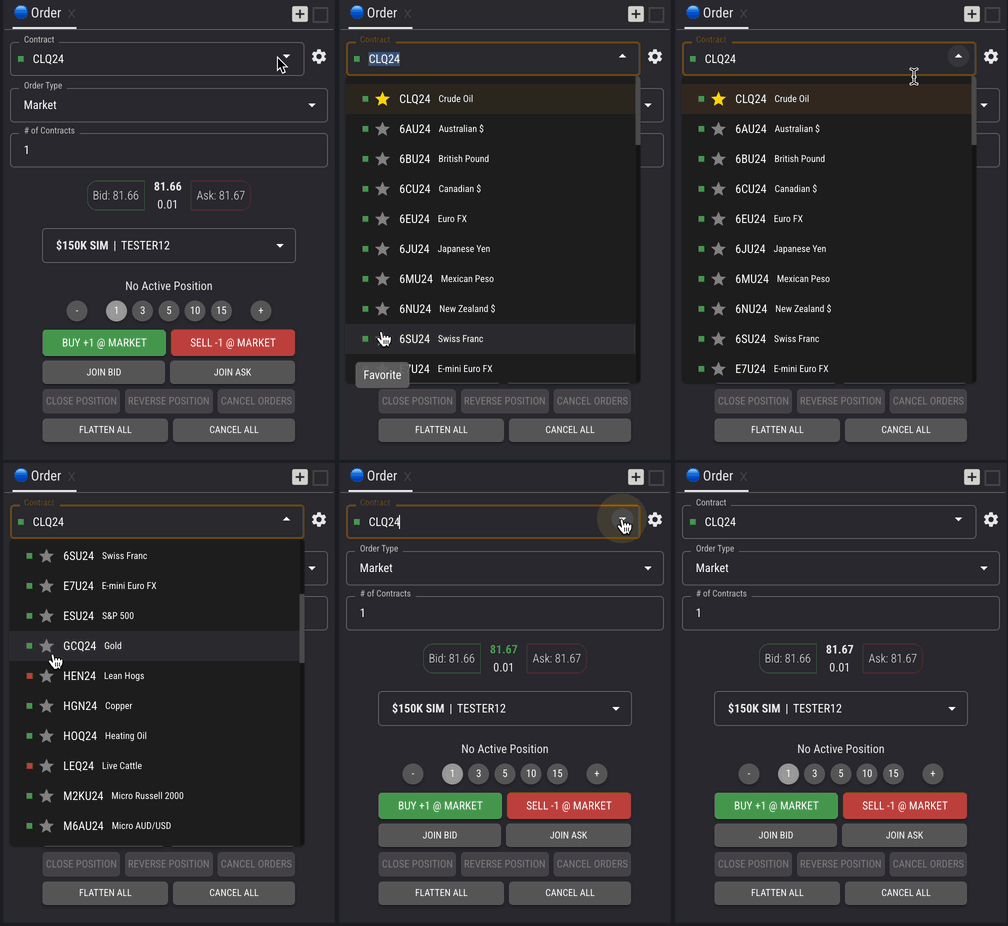
The contract drop-down selector allows traders to quickly choose and switch between different contracts to trade from the Order Card. To search for a contract, click the drop-down and search the list of available contracts, or click and type the symbol in the contract field.
For quick access to frequently traded symbols, you can add them to Favorites. To do this, just click on the star symbol located next to the name. When a symbol is added to Favorites, it will appear at the top of the search list in all the component's contract drop-downs.
## Order Type
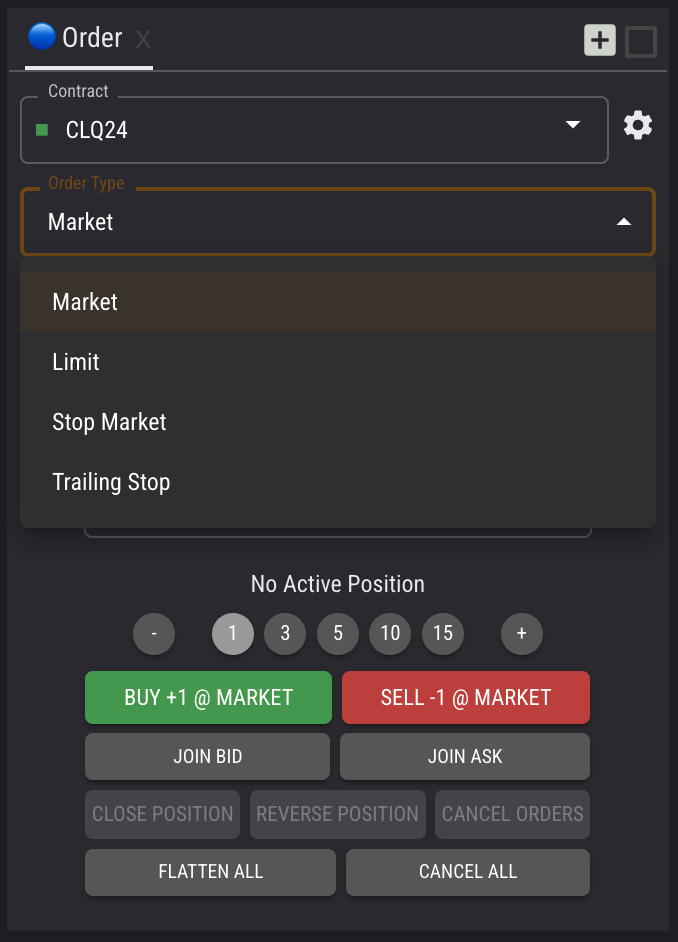
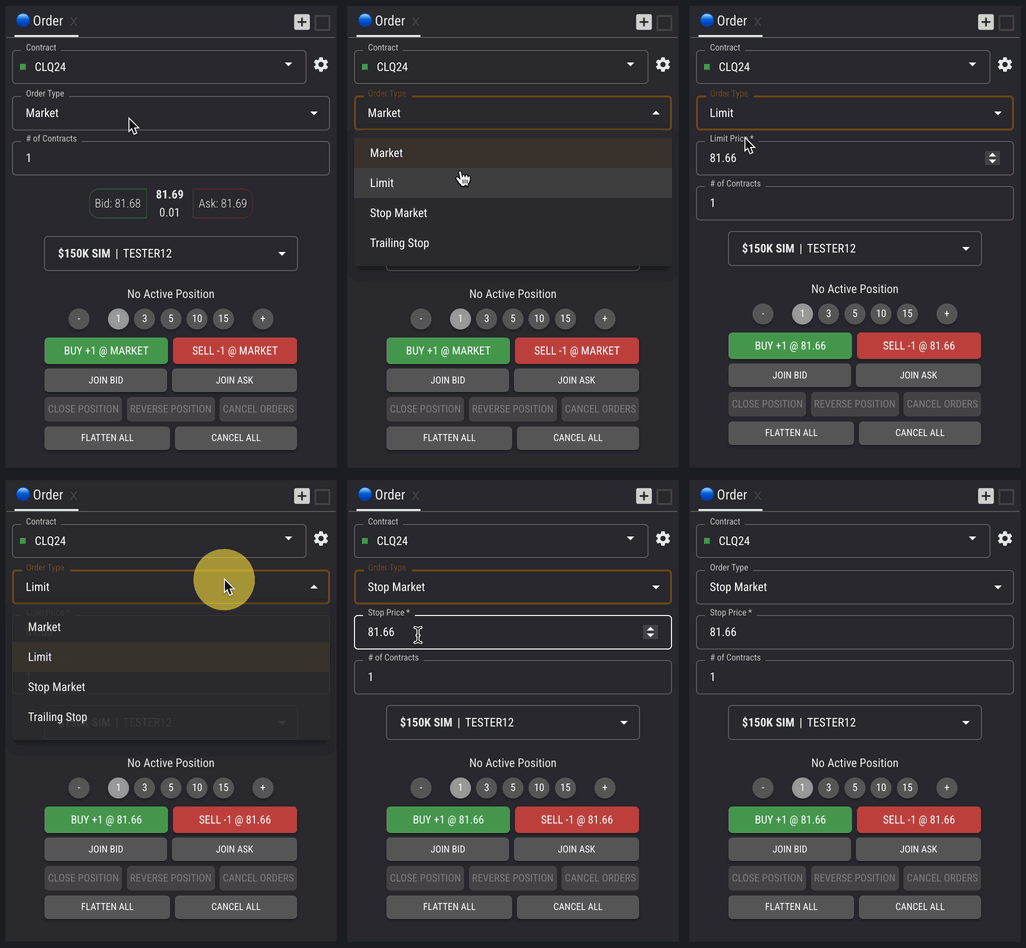
The order type field allows traders to choose from various order types to execute their trades. Traders can select Market Orders, Limit Orders, Stop Orders, and Trailing Stop Orders.
### Limit & Stop Market Orders
When placing a Limit or Stop Market order, you must enter the order entry price before executing the order.
* Limit Orders:
* Buying: Ensure the limit price is at or below the current market price
* Selling: Ensure the limit price is at or above the current market price
* Stop Market Orders:
* Buying: Ensure the stop price is above the current market price
* Selling: Ensure the stop price is below the current market price
NOTE:
Limit Orders let you set a specific price to buy or sell. If the market price hits your price, the order is executed, guaranteeing the price but not the execution.
Stop Market Orders execute once the set stop price is reached, ensuring the trade goes through but not at a guaranteed price.
### Trailing Stop Orders
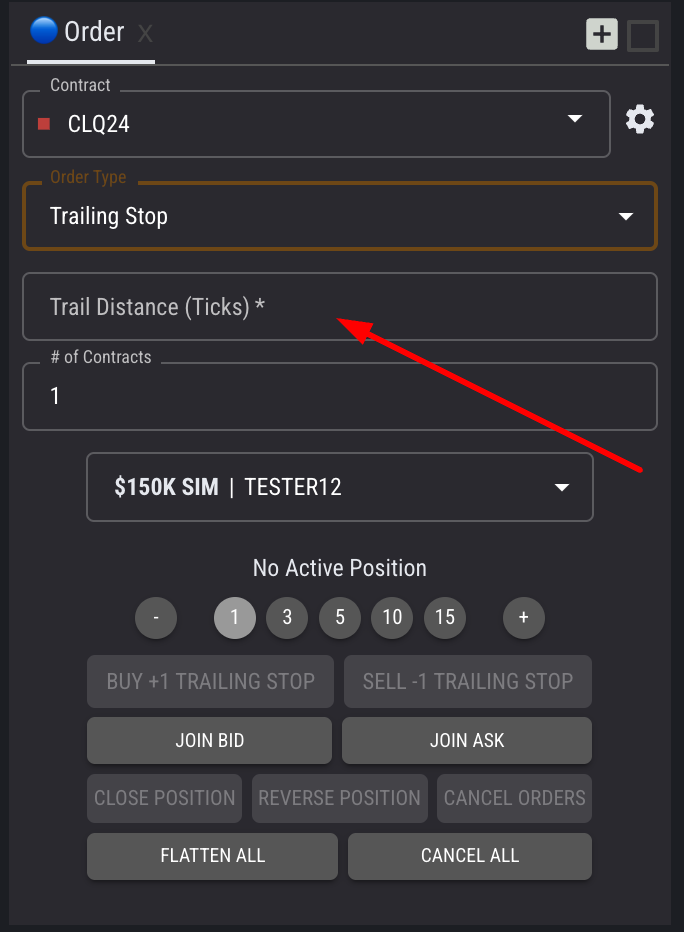
When placing a Trailing Stop Order, you must enter a trailing distance in ticks. This is the amount by which the stop price will trail the current market price. For example, if you set a trailing distance of 10 ticks and have an open long position, if the market price rises (in your favor), the stop price will automatically adjust to stay 10 ticks below the current market price but does not move down.\
\
NOTE: In TopstepX, a Trailing Stop order can be opened *without* having to have a position opened. Once the stop price is triggered, the Trailing Stop order becomes a market order and executes at the best available price.
## Order Quantity
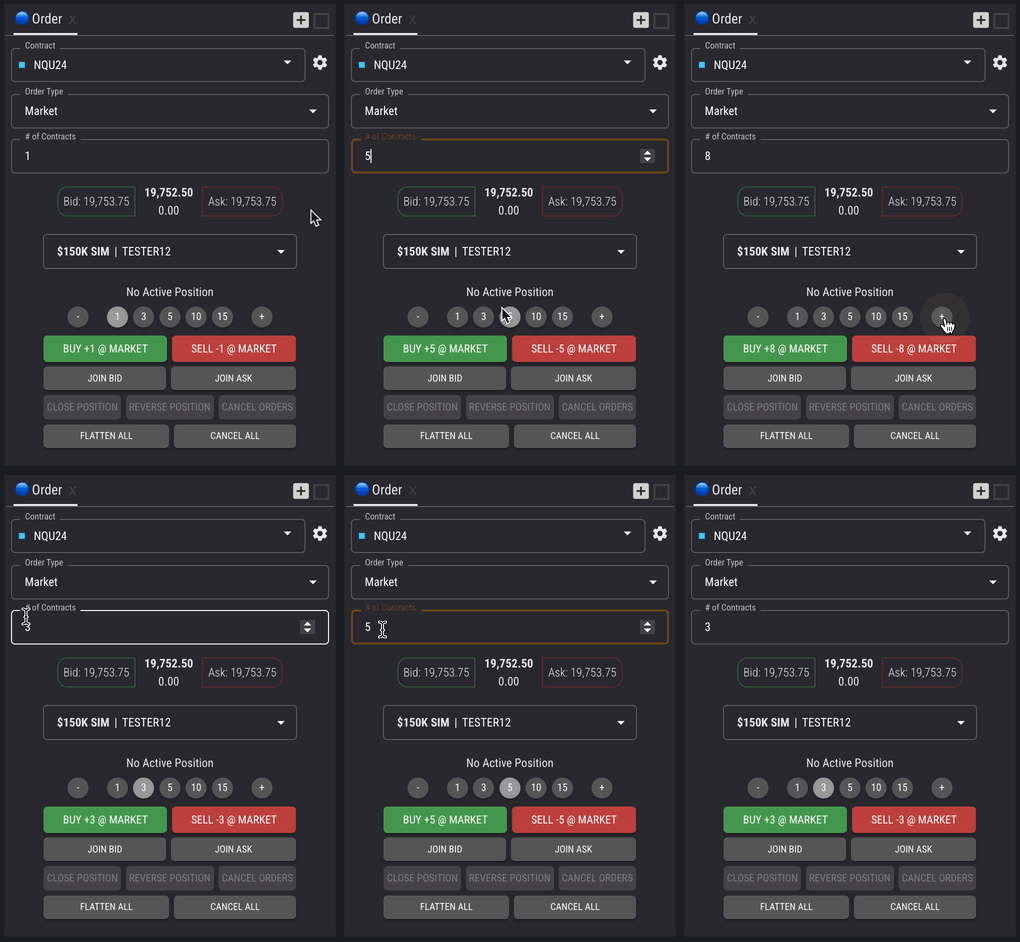
Traders can adjust the number of contracts they wish to buy or sell using the up and down arrows in the "# of Contracts" field. Alternatively, traders can choose a predefined contract size and adjust the quantity using the plus (+) and minus (-) buttons.
## Bid / Ask
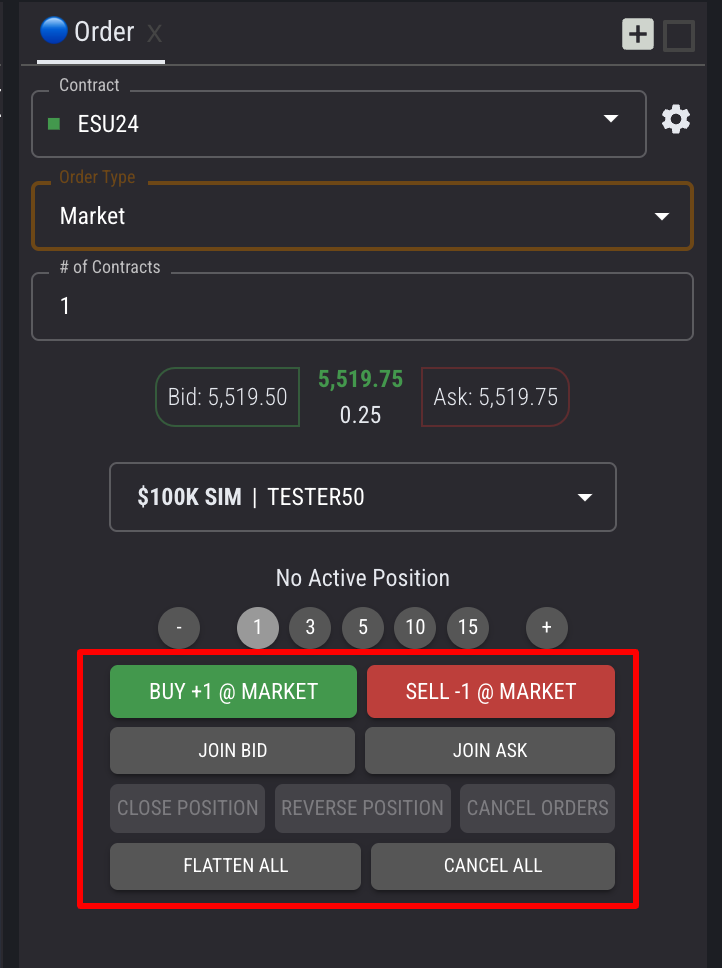
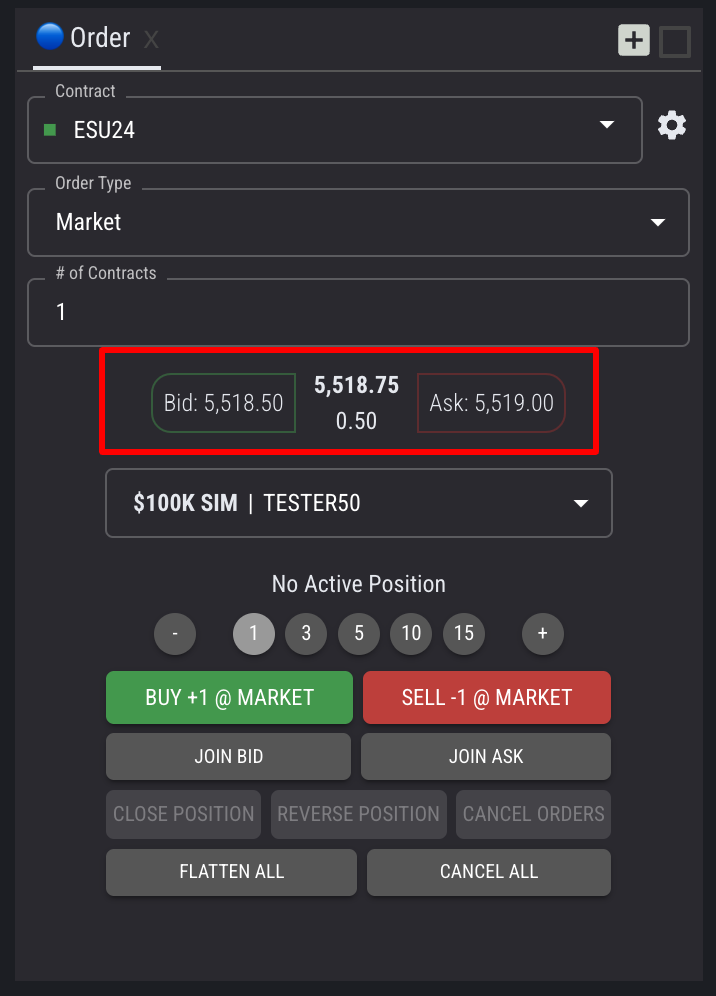
When a market order type is selected in the Order Type field, the Order Card component will display the current Bid price on the left, the Ask price on the right, the Last Trade Price at the top center, and the Price Change at the bottom center of the contract.
## Account Selector
The account drop-down selector allows traders to choose which account to execute the order from. Upon selecting the account, all components on the platform will switch to the account chosen.
## Order Execution Types
* Buy Market - immediately executes a long position at the current market price
* Sell Market - immediately executes a short position at the current market price
* Join BID - executes a working buy order at the current highest bid price
* Join Ask - executes a working sell order at the current lowest ask price
* Close Position - executes a closing market order for the symbol selected in the component, whether long or short at the current market price
* Reverse Position - closes the current position with a market order of equal quantity and opens a new position in the opposite direction with the same quantity
* Cancel Orders - cancels one or more working orders for the symbol selected in the component
* Flatten All - closes all open positions across all accounts
* Cancel All - cancels all working orders across all accounts
---
# Agent Instructions
This documentation is published with GitBook. GitBook is the documentation platform designed so that both humans and AI agents can read, navigate, and reason over technical content effectively. Learn more at gitbook.com.
## Querying This Documentation
If you need additional information that is not directly available in this page, you can query the documentation by asking a question.
Perform an HTTP GET request on the following URL with the `ask` and `goal` query parameters:
```
GET https://help.topstepx.com/components/order-card/trading.md?ask=&goal=
```
`ask` is the immediate question: it should be specific, self-contained, and written in natural language.
`goal` is what the user is ultimately trying to achieve, the reason they need the answer. Sharing it helps GitBook give you a better, more relevant answer. A goal is most helpful when it describes the outcome the user wants rather than restating the question. For example, with `ask=how do I create an API token`, a goal like `automate deployments from our CI pipeline` lets GitBook tailor the answer to that use case.
The response will contain a direct answer to the question and relevant excerpts and sources from the documentation.
Use this mechanism when the answer is not explicitly present in the current page, you need clarification or additional context, or you want to retrieve related documentation sections.
.gif?alt=media&token=71ec89f4-c822-43f5-8e5e-abda04e465ed)